First Module
This page will drive you to create your first Module !
What's a module
A module is a type of library that you can import using Wally. It helps avoid common mistakes, reduces boilerplate code, and promotes standardization across all our games by providing high-quality, tested, and standardized code.
Prerequisites
First see the Installation Guide and install everything that's needed including VS Code, Roblox Studio ...
Initialize the project
In this section we'll focus on how to initialize the project on GitHub
Create the repository
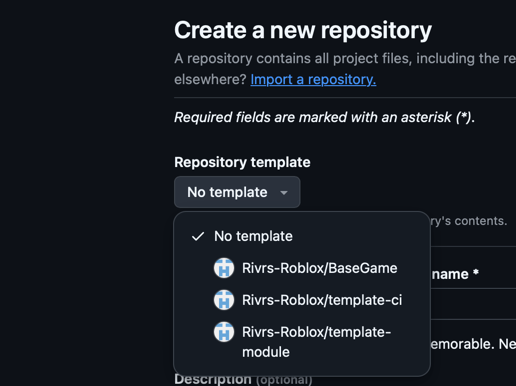
Once you installed all prerequisites, then go to create a new repo and select the repository template RivrsRoblox/BaseModule
Setup protected branches and rules
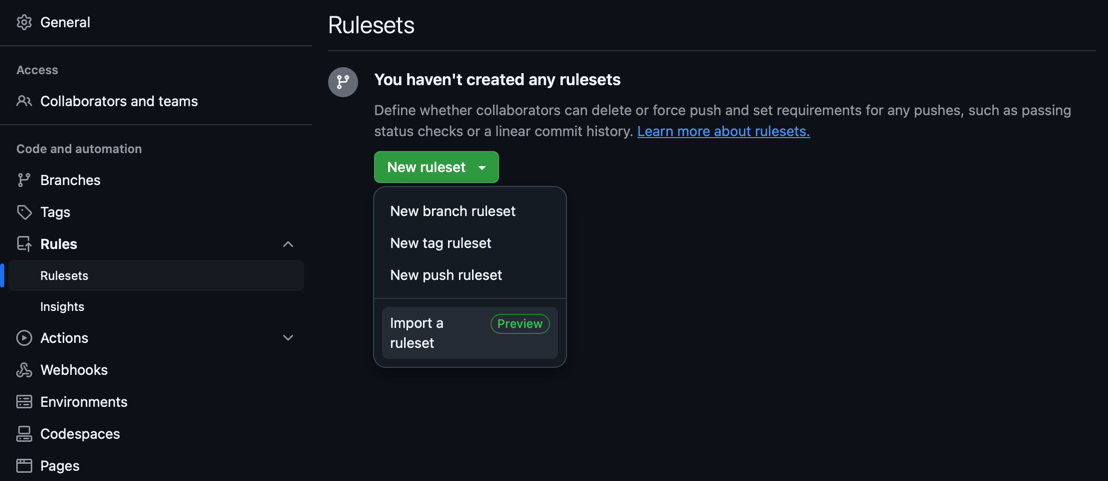
First download module_rules_pr_develop.json and module_rules_pr_production.json then go to your GitHub project page and go to Settings > Rules > Rulesets and click Import a ruleset and do this for both ruleset Do not forget to check that Enforcement status is set on Active.
Workflow
Now that you have your first module repository and setup, we'll take a clearer look at the development workflow we use for Roblox's modules
Jira
All work starts on Jira, where you can find your assigned tickets. These tickets are the primary way to track project progression and manage tasks.
Tickets
You can view your Tickets ( task, bug or info ) using multiple view
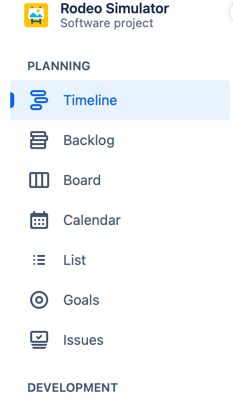
You may use Timeline View to track progression of the project or create task directly in the right epic, you may use backlog to see incoming work, next sprints etc ... But the main view you'll probably use is the Board view.
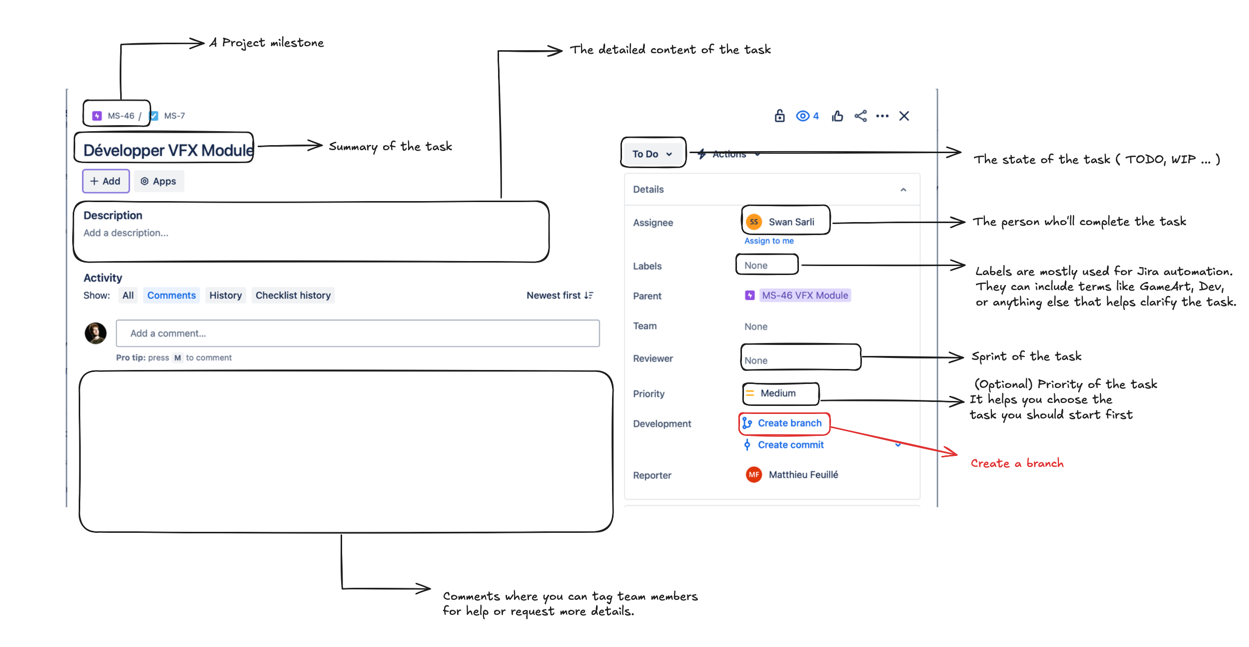
Here is a more detailed view of a ticket content
Automation
To simplify project management for developers, we use various Jira automations.
The only actions required in Jira are to create a branch from the ticket in the correct repository. This will automatically move your ticket from TODO to In Progress (names may vary between projects) and move tasks from Done to Production when develop is merged into main.
All other ticket states are managed automatically by Jira and GitHub.
GitHub
Branches
The repository works with multiple branches, each assigned to a specific state:
main: This branch MUST contain all the code that is currently deployed and stable. It only accepts PRs from the develop branch (except for hotfixes, if the develop branch contains code that should not be deployed).develop: This should be the most up-to-date branch, containing the code for all completed/reviewed tickets that have not yet been deployed to production. It serves as the final stage to test and avoid bugs in production.feature/task-name: This branch is attached to a Jira ticket. On this branch, you can work on your tasks, but your code should be tested and reviewed before being merged into develop.
Versioning
Modules are versioned using semver. The only thing you need to do is create a release on GitHub and a GitHub tag to easily restore an older version of the module (e.g., the latest stable version in case of a major issue). Take a look at the complete semver instructions, but here’s a quick summary:
You start the project at 0.0.0.
You release the project, and it is now at 1.0.0.
You release a bugfix/patch, and the project is now at 1.0.1.
You add a new feature (whether with or without a bugfix/patch), and the project is now at 1.1.0.
You re-code the whole module, and the project is now at 2.0.0.
Setup locally your project
Open your Git client (VSCode, GitKraken, git-cli, etc.) and check out this branch. You can now work on the feature/patch.
Don't forget to push your code to GitHub frequently.
Creating a PR
When your task is complete, you must create a Pull Request on GitHub.
First, go to Pull Requests > New pull request.

Then, select the target branch (develop) and your feature branch, and click Create pull request.
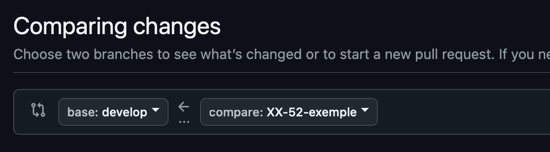
Once done, keep an eye on the PR and ensure all GitHub checks have passed successfully.
When all checks are successful and the PR is reviewed, click on Merge pull request.
Deployment (wally)
We use Wally as package manager, here is a recap draw
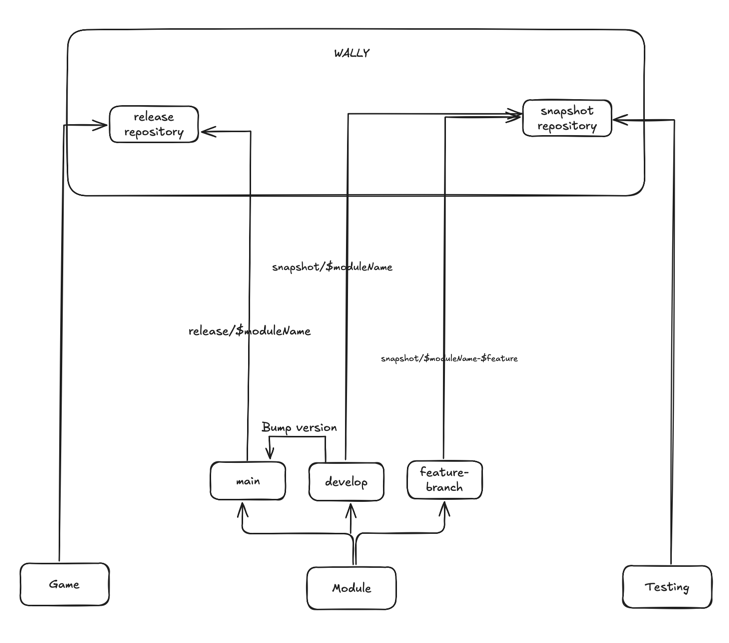
Deployment is done automatically depending on the branch :
main-> deploy atrelease/repo_namedevelop-> deploy atsnapshot/repo_namefeature/task-name-> deploy atsnapshot/repo_name-branch_name
When you want to deploy on release repository you will need to manually bump the version as release repository doesn't allow to override an existing version